

Top Tools and Tips to Make Your Computer Run Faster
If your computer has started feeling sluggish, with slow boot times, lagging applications, or general unresponsiveness, you can often restore its speed using simple built-in tools and free software. These methods focus on reducing background load, clearing accumulated clutter, and choosing more efficient programs, all without needing new hardware. The advice here is updated for Windows 11 and still highly relevant in 2026.

1. Manage Startup Programs with Task Manager
Pro Tip: Review your startup list every few months, since new software installations can quietly add themselves back.
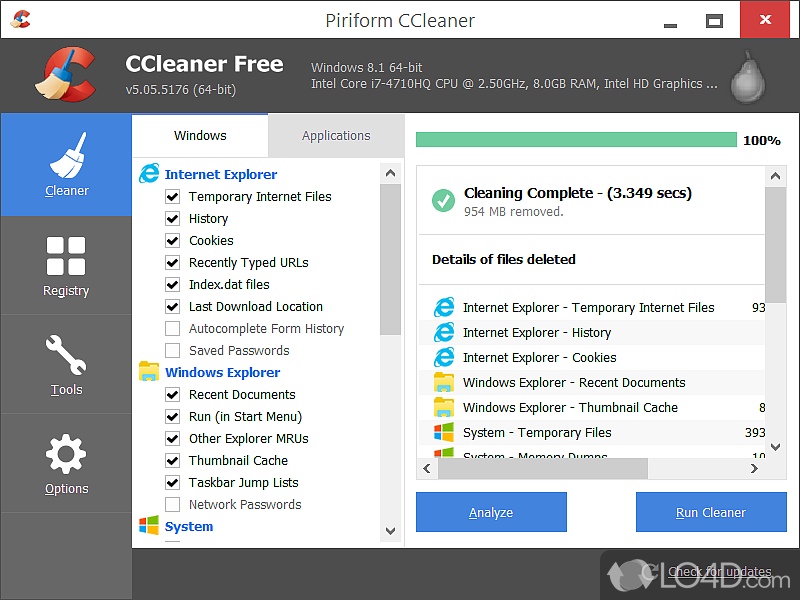
2. Clear Junk Files with Built-in Tools or CCleaner
Temporary files, old update caches, browser data, and recycled items gradually fill your drive. When storage gets tight, Windows spends extra time managing files, which slows everything down.
Windows 11 makes this easy with Storage Sense. Go to Settings, System, Storage, and turn on Storage Sense to automatically delete temporary files, empty the Recycle Bin after a set period, and manage cloud content. For manual control, run Cleanup recommendations in the same menu.
If you want deeper cleaning, CCleaner remains a trusted free option that scans for leftover browser caches, application junk, and more. Use it carefully, stick to default settings, and you’lmu l free up gigabytes while improving file access speeds.

3. Completely Uninstall Unused Programs with Revo Uninstaller
Old software doesn’t just occupy space, it can leave behind services, startup entries, and registry clutter that continue using resources long after you stop using the program.
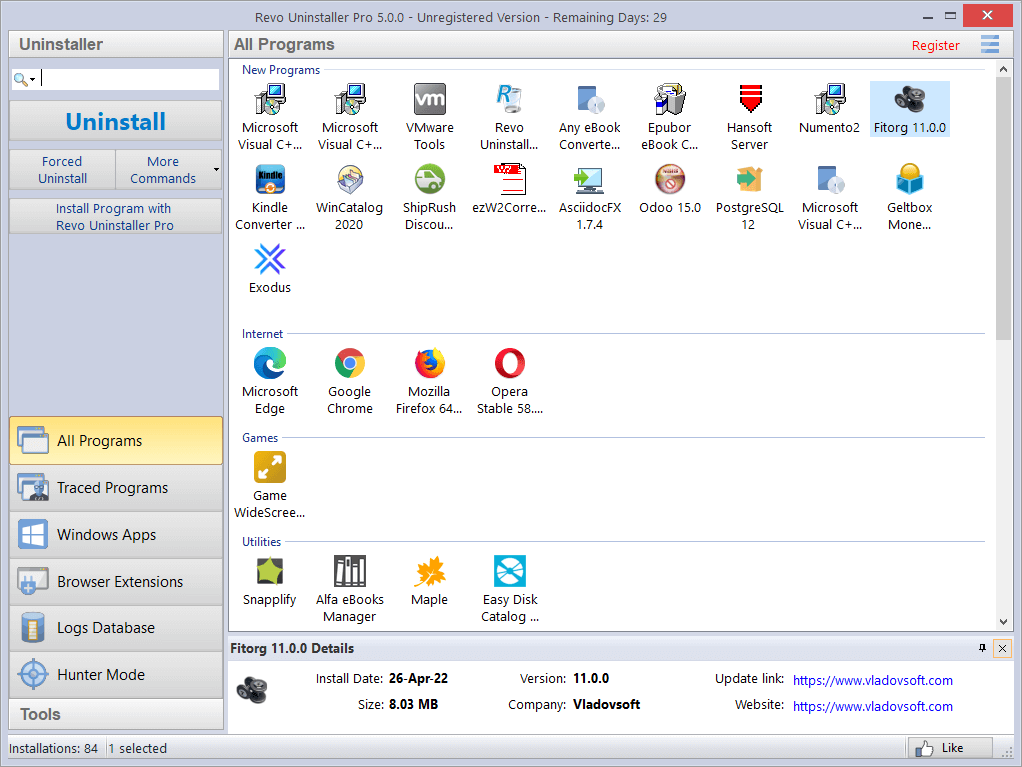
Windows’ own Apps & features section handles basic removal, but it often misses leftovers. Revo Uninstaller free edition goes further: it runs the program’s uninstaller first, then scans for and deletes remaining files, folders, and registry keys.
Start by removing programs you haven’t opened in months, then let Revo clean up the traces. This results in a leaner system with more free space and fewer hidden processes running in the background.
4. Optimize Your Drives Regularly
Traditional hard drives slow down when files become fragmented, while SSDs benefit from periodic TRIM commands to maintain peak performance.
hu
Windows 11 handles this automatically via the Optimize Drives tool. Search for “defragment” or navigate to Settings, System, Storage, Advanced storage settings, Optimize drives. It analyzes each drive and runs the appropriate optimization on schedule.
You rarely need to intervene manually, but if you’ve recently transferred large amounts of data or filled a drive, running it once can provide a noticeable boost, especially on mechanical HDDs.

5. Switch to Lighter Software Alternatives
Certain popular programs are resource-heavy by design. Replacing them with leaner options can free up substantial memory and CPU, making multitasking smoother on modest hardware.
Google Chrome, for example, uses significant RAM with multiple tabs open. Mozilla Firefox or Opera typically consume less while offering comparable features, extensions, and browsing speed.
For torrent downloads, move from ad-supported clients to qBittorrent, a clean, open-source alternative that’s fast and feature-rich without the bloat.


Pro Tip: Run a full scan with Windows Security occasionally, since malware can quietly drain resources and cause slowdowns.
Combining these steps, managing startup items, cleaning junk, thorough uninstalls, drive optimization, and lighter apps, will make most computers feel significantly faster. Start with the ones that match your main complaints, and enjoy a snappier system in no time.
Enjoyed this post? Never miss out on future posts on Tech Tutorials Hub by «following us on WhatsApp» or Download our App


